

Contents: General information ⬇ Anti-theft system ⬇ Information display ⬇ General controls for the…⬇ Radio ⬇ Setting up the radio ⬇ Radio Data System RDS (FM) ⬇ CD/MP3 player ⬇ Remote controls for the audio system ⬇
General information
The infotainment system is a single functional unit with an information display and an on-board computer (with appropriate equipment) (see Section 17).
Depending on the configuration, the car can be equipped with various audio systems, equipped with additional optional equipment and information displays of various types, depending on the wishes of the consumer.
An external signal source can also be connected to the infotainment system, such as a mobile phone, navigation system, etc. The authors of this guide recommend entrusting the connection and installation of additional equipment to Opel service station specialists, who can also provide comprehensive information on the functions, settings, and rules for using this equipment together with the infotainment system.
This Manual examines the control methods and capabilities of the audio system using the example of the basic CD 30/CD 30 MP3 audio system.
The standard equipment of this audio system includes a radio with automatic tuning and recall of preset frequencies, with the ability to receive radio stations in the RDS format, a CD player and an optional MP3 player. The infotainment system has an automatic volume control function to compensate for road noise and a digital equalizer with five preset tone controls to optimize the sound.
When equipped accordingly, the system has the ability to connect external devices (for example, a mobile phone) and remote control using buttons built into the steering wheel. Well-thought-out design of the controls and a large, convenient button that controls the power and volume control make it easy to operate the system.
Anti-theft system
The infotainment system is equipped with an electronic anti-theft system. An individual security code is entered into the electronic device - it is impossible to activate the audio system when installing it on another car.
Caution: If the battery needs to be disconnected, before starting work, make sure you have the correct combination to activate the equipment after connecting the battery. The security code must be specified in the user manual of the infotainment system - it must be kept outside the car. If the combination is lost, contact an Opel service station for assistance.
Note: On models produced since 2005, the security code is recognized by the electronic system without the owner's intervention and does not need to be entered when connecting the battery.
Information display
Depending on the configuration, a display of one of the design options is built into the instrument panel (for more details see Section 17).
When the audio system is activated, information about the audio source appears in the information display field:
- Radio frequency range/CD player mode;
- Name or frequency of the radio station being received/number or title of the CD track;
- Depending on the current settings of the audio system, the corresponding indicators appear in the display field (see below).
The information display allows you to monitor the current audio system settings and adjust system parameters.
General controls for the infotainment system
The location of the controls on the infotainment panel is shown in Figure 19.1, to which all references in the text refer.
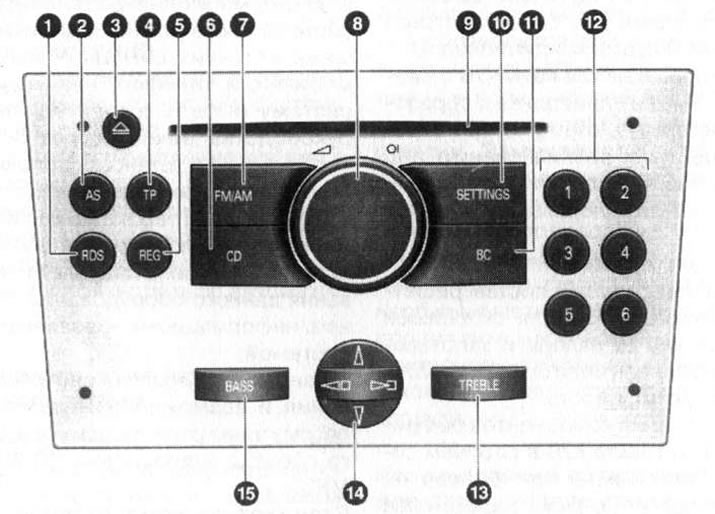
19.1. Location of controls on the infotainment system panel
Activating/deactivating the audio system
The infotainment system is activated by pressing the central button of the rotary volume control (8). The system will be activated in the playback mode that was set before the system was deactivated.
(Information taken from the website OPELBOOK.ru)
To turn off the system, press the button (8) again.
Note: If you activate the infotainment system with the ignition off, the system will automatically turn off after approximately 1 hour.
In addition, it is possible to activate/deactivate the system when turning the ignition on/off (ignition logic) - to operate in this mode, it is necessary to turn off the ignition without turning off the audio system - the system is deactivated. When the ignition is turned on again, the audio system will be activated in the mode that was set before turning off the ignition.
The automatic switching on function is set in the factory settings of the system and is activated by default. If necessary, it can be disabled - the audio system will be activated/deactivated only by pressing the button (8).
To deactivate the automatic turn-on feature:
- Press the SETTINGS button (10) - the display will show "Audio";
- Press the lower sector of the 4-position switch (14) - the display will show "System";
- By successively pressing the right sector of the 4-position switch (14), select the item in the menu "Ign. Logic ON/OFF";
- By pressing the upper or lower sector of the 4-position switch (14), select the required setting:
- when choosing "Ign.Logic ON" auto power on function activated;
- when choosing "Ign.Logic OFF" the automatic switch-on function is disabled.
Approximately 6 seconds after the last button press, the display will return to the main menu display mode.
Note: When the battery is disconnected and reconnected, the auto-on function will be reactivated.
Adjusting the sound volume
The sound volume is adjusted by turning the volume control knob (8).
Note: On models equipped with SSV sound level control system (Speed Sensitive control Volume), the audio system playback volume will be adjusted automatically depending on the vehicle speed.
When activated, the infotainment system starts playing the sound at the last set volume. Using the corresponding menu (see below), you can preset the maximum volume level when switching on. The selected maximum volume level when activating the infotainment system will only be set if the sound volume before switching off the system was higher than this value, and the infotainment system must have been switched off for at least 5 minutes with the ignition off.
If necessary, the sound can be turned off without turning off the system as a whole (sound blocking). To do this, hold down the volume control button (8) for more than 2 seconds - the display will show "Mute" and the sound sources will be turned off.
Note: When the audio system receives a traffic information service signal (see below), the sound mute is automatically released.
To remove the sound block, press the button or turn the volume control knob (8) - the display will show the current playback mode.
Setting up sound parameters
Sound parameters are adjusted via the corresponding menu and buttons "BASS" (15) "TREBLE" (13) on the infotainment system control panel.
To enter the sound settings menu, press the "SETTINGS" button (10) - the display will show "Audio". If the display shows "Settings", press the lower sector of the 4-position switch (14) to go to the "Audio" menu item.
The selection of the sound parameters to be adjusted is made by successively pressing the right/left sector of the 4-position switch (14) - the names of the selected parameter will be displayed in the display window field in the following sequence:
- FADER (front and rear speaker volume balance) (with appropriate equipment)
- BALANCE (left and right speaker volume balance)
- SOUND (select equalizer mode)
- TA VOLUME (traffic announcement reception volume)
- SDVC (automatic volume control system depending on the speed of movement)
- EXT.IN.VOL. (the volume of the signal from an external source, such as a mobile phone)
- ON VOLUME (sound volume when the audio system is activated) "-" FADER PTY etc.
After selecting the desired parameter, its adjustment is carried out by pressing the upper/lower sector of the 4-position switch (14). The FADER, BALANCE, EXT.IN.VOL., ON VOLUME parameters are adjusted using conventional units from -12 to +12. When the desired value is selected, it is automatically entered into the system memory.
Note: New minimum volume for traffic announcements (when setting the TA VOLUME parameter) will be set only if it is lower than the previously set minimum traffic announcement volume.
When you select the SOUND parameter, the equalizer settings switch between 5 preset modes after each button press - the corresponding inscription, for example "Rock" or "Jazz", appears in the display window field.
The SDVC parameter allows you to adjust the level of road noise compensation, choosing one of the values from 0 to 5.
Exit from the setup mode is performed by pressing the "SETTINGS" button (10) - the display will show the selected playback mode. Exit from the setup menu can occur automatically by a timer signal if the settings are not used for more than 3 seconds.
Note: When exiting the menu by the timer signal, the display will show "Audio" and then the name of the current audio source, - the GID display will show the general settings menu "Settings".
The treble and bass tones can be adjusted using the preset equalizer modes (see above) or in manual adjustment mode.
Note: When setting in manual mode, the previously set equalizer mode is cancelled.
To manually adjust the low frequency tone, press the "BASS" button (15) - the display window will show the corresponding inscription and the previously selected low frequency tone level. Adjustment is carried out by pressing the upper/lower sector of the 4-position switch (14). Adjustment is carried out using conventional units from -12 to +12. When the desired value is selected, it is automatically entered into the system memory.
Note: The bass tone control applies to the currently selected audio source and is stored separately for the radio and CD player.
Exit from the setup mode is done by pressing the "BASS" button again or automatically by the timer signal if the settings are not used for more than 3 seconds.
Manual adjustment of high frequencies is carried out in the same way as adjustment of low frequencies by pressing the "TREBLE" button (13).
Radio
Unlike a device with a stationary antenna, there are features of radio signal reception by a car radio receiver, which are determined by the close location of the antenna to the ground, constant change in the distance to the transmitter, multiple reception of reflected signals and overlapping of signals from different radio stations. Due to these features, interference and noise, distortion of sound and even complete cessation of radio signal reception may occur.
In addition, the quality of radio signal reception depends on the power of the transmitting station and the distance from the signal source, and on the presence of shielding buildings and structures (houses, bridges, etc.), as well as from the influence of local conditions (mountains, lowlands, etc.).
Note: Using a cellular phone in or near a vehicle may cause interference with the radio.
Activating the radio receiver
When activated, the infotainment system will activate in radio playback mode if it was set before the system was turned off.
To activate the radio receiver from CD playback mode, press the "FM/AM" button (7). With subsequent presses of the button, the frequency ranges of the receiver are switched in the following order: FM (VHF) → AM (medium and short waves).
When you activate the radio or switch between frequency ranges, the radio station frequency that was tuned the last time you used the radio is selected.
Setting up the radio
Tuning the radio receiver can be done in the following ways:
- Automatic search for radio stations;
- Manual search for radio stations;
- Search radio stations by program type (rDS radio data system).
Automatic setup
Automatic frequency tuning is performed by pressing the 4-position switch (14) with a short delay - this activates the automatic search for the nearest frequency with the received signal and the display shows the inscription "Seek" before the working frequency of the received station. Depending on pressing the right or left sector of the switch, the search is performed in the direction of increasing or decreasing frequencies.
Note: When using automatic search, RDS and TP functions must be disabled (see below).
During the search, the playback sound is muted. After the automatic tuning is completed, the radio receiver will start playing the signal of the newly tuned radio station. If the radio receiver does not find any radio stations, it will automatically switch to a search mode with higher sensitivity. In case of unsuccessful search and after this attempt, the signal of the radio station selected before the search will be played.
Manual setting
If necessary, the frequency of the desired radio station can be tuned manually.
Attention: Frequency adjustment should not be performed while the vehicle is moving!
When the 4-position switch button (14) is pressed briefly, the frequency change will occur step by step: when the right sector is pressed, the frequency will increase; when the left sector is pressed, the frequency will decrease. This function is used for fine-tuning the frequency.
If you know the frequency of the desired radio station, hold the corresponding sector of the switch (14) pressed until this frequency is reached - the display shows "MAN" before the current frequency of the radio station. During the search, the playback sound is muted and is activated again when the button is released.
Radio Data System RDS (FM)
Radio Data System (RDS) is a broadcast service that allows FM stations to transmit additional digital information along with their regular radio program signal.
Radio receivers equipped with decoders of radio data systems and gateway interface (RDS/EON), when tuned to the broadcast frequencies of a number of FM radio stations, are capable of reading special service information, which allows using some additional functions, such as: determining the name of the radio station, automatic switching to alternative broadcast frequencies of the selected radio station, determining and transmitting traffic information service messages, searching for programs of a given theme, etc.
To activate the RDS function, press the button (1) briefly - the corresponding indicator should appear in the display field. If the currently tuned radio station does not support the RDS format, the radio receiver automatically searches for the nearest signal of the corresponding radio station. The name of the radio station broadcasting will appear in the display field instead of the current frequency.
Note: When the automatic memorization function of radio stations is turned on (see below), the RDS function is activated automatically.
To deactivate the RDS function, press the button (1) again - the corresponding indicator on the display should go out, and the current tuning frequency will appear instead of the radio station name.
Selecting RDS radio stations
The infotainment system stores all received FM radio stations in a backup memory. The list of these radio stations is automatically initiated when activating the TP radio station search or the automatic station memory function (see below). In this case, RDS radio stations are sorted in the channel list by station name (for example, HR1, HR2, etc.).
This list is initiated manually by holding down the "RDS" button (1) until a beep is heard - the display will show "Memory FM", then "MEM" and the operating frequency of the received radio station. To select RDS radio stations from the list, briefly press the left/right sector of the 4-position switch (14) - the radio will tune to the next RDS radio station recorded in the list.
To search for RDS radio stations without using the list, you must have the RDS function activated (the corresponding indicator appears on the display) hold the left/right sector of the 4-position switch until the display shows "Seek" - the search for the nearest radio station transmitting RDS signals is performed, during the search the playback sound is muted.
Note: If the Traffic Announcement (TP) function has been previously activated (see below), the radio will only search for stations that support this format.
Selecting programs by message type (PTY)
Many RDS radio stations transmit a PTY code indicating the type of program being broadcast (for example, NEWS - news). Using the PTY code, you can search for radio stations by the type of programs they broadcast.
This function is activated by selecting the corresponding parameter (PTY) in the settings menu (see above).
After each press on the upper/lower sector of the 4-position switch (14), the next name of the program type will appear in the display field (see explanatory table). After selecting the desired program type, you must press the right sector of the 4-position switch and hold it down until the display shows "PTY" - the playback sound is turned off and the search for a radio station broadcasting a program of the specified type is activated. If the radio does not find the appropriate radio station, you will hear the last tuned radio station.
Classification of PTY program types
| Types of programs | Display message |
| News | NEWS |
| Business news | AFFAIRS |
| Information | INFO |
| Sport | SPORT |
| Education | EDUCATE |
| Radio plays | DRAMA |
| Culture | CULTURE |
| Science | SCIENCE |
| Miscellaneous | VARIED |
| Pop music | POP M |
| Rock music | ROCK M |
| Road music | M. O. R. M. |
| Light classical music | LIGHT M |
| Classical music | CLASSICS |
| Other music | OTHER |
| Weather | WEATHER |
| Finance | FINANCE |
| Programs for children | CHILDREN |
| Social Events | SOCIAL A |
| Religion | RELIGION |
| Live broadcast | PHONE IN |
| Trips | TRAVEL |
| Leisure | HOBBIES |
| Jazz music | JAZZ |
| Country | COUNTRY |
| National music | NATION M |
| Old hits | OLDIER |
| Folk music | FOLK M |
| Documentary programs | DOCUMENT |
Regional Programs (REG) Search Function
The REG function is activated/deactivated by pressing the button (5) on the control panel of the infotainment system. When this function is activated, the corresponding indicator lights up in the display field - when searching and selecting RDS radio stations, the regional broadcasting code will be additionally checked.
Road Messages (TP)
Reception of traffic announcements is possible in the FM range, as well as when playing cassettes or CDs, regardless of the activation of the RDS function.
The volume level for traffic announcements can be adjusted in advance by selecting the TA VOLUME parameter via the setup menu (see above).
The traffic announcement function is activated by pressing the "TP" button (4) - if the currently tuned radio station does not transmit traffic announcements, the search for the radio station with the strongest signal transmitting traffic announcements is automatically activated. When the function is activated, the indicator "[TP]" appears in the display field - if messages are being broadcast, or " - if none of the currently received radio stations is transmitting traffic announcements.
When receiving an information message, the audio system will automatically stop playing the current mode and switch to the traffic information service channel frequency - the corresponding indication will appear on the display. The transmitted information is broadcast at the volume level previously set for traffic messages. After the broadcast is finished, the audio system will return to the previously set settings.
Playback of an information message can be interrupted before the end of its broadcast by pressing the "TP" button - the audio system will return to the previously set settings, and the TP function will switch to the standby mode for the next message.
The function is deactivated by pressing the button (4) again.
Searching for traffic information stations can be done by pressing the right/left sector of the 4-way switch in the same way as when selecting RDS stations (see above), but with the TP function activated.
This audio system has the ability to listen to traffic announcements without playing other broadcast sources or CD recordings. To do this, turn off the sound by blocking (see above) - the display will show "Mute" or by turning the volume control knob (8) to the extreme left position. In this case, the audio system will play only the received traffic announcement signals at the volume level previously set for this function (see above).
If an external audio source is connected to the audio system (for example, a mobile phone), then when this device is operating, playback of other audio sources (including the broadcast of traffic messages) is not available - the display screen will show "Extern In". However, if necessary, you can interrupt the playback of sound from an external source and switch to receiving a traffic message. When the TP function is activated, when receiving a message, instead of the inscription on the screen "Extern In." the name of the radio station broadcasting the traffic announcement will appear. To switch to the message playback mode and back, press the "TP" button (4).
Entering presets into memory
The radio receiver's memory can store up to 12 FM radio station settings (6 in FM and in FM-AS level) and up to 12 AM radio station settings (6 in AM and AM-AS level).
To activate the FM-AS or AM-AS level, press the "AS" button (2) on the system control panel after preliminary selection of the FM or AM range - the corresponding indicator should light up on the display. To go to the first level of the corresponding range, press the same button again - the indicator in the display field should go out.
Entering frequencies into the system memory is performed in the following sequence:
- a) Perform manual tuning of the desired radio station (see above).
- b) Press one of the 6 preset radio station selection buttons (12) and hold it for about 3 seconds until a sound signal is heard - during this time the frequency previously entered into this memory cell is displayed on the display screen. After the confirmation signal, the radio receiver begins broadcasting the newly tuned radio station, and the name or operating frequency of this radio station appears on the display - the setting is entered into memory. Note: When the button is pressed, the sound playback will be temporarily stopped and will resume after the button is released.
- c) Repeat the above operations with other buttons to tune to the radio stations you listen to most frequently.
Note: The frequency is stored in memory simultaneously with the RDS settings that were activated at the time of recording.
Manual frequency tuning and recording can also be performed when the AS level is activated.
The settings stored in the memory cells are activated by briefly pressing the number buttons 1-6 (12) after preliminary selection of the desired level using the "AS" button (2). In addition, if you hold the "AS" button (2) down until you hear a beep, the radio will switch to the AS level and an automatic search for stations will be performed, with the settings of 6 of them (with the strongest signal) are stored in the receiver's memory cells (number buttons (12)).
Note: When performing this operation, the playback sound is muted. Recording is performed only for the AS level.
When automatic recording of radio stations into memory is enabled, the RDS function is automatically activated - first, all radio stations that support the RDS format are remembered.
If the function for receiving traffic announcements TR (see above) is activated before or during automatic memorization of radio stations, the radio receiver will call the radio station transmitting traffic announcements after the automatic search has finished.
Note: If the TP function is activated during automatic recording, the automatic channel search operation remains activated until at least 1 radio station broadcasting traffic information is found.
If during the trip the vehicle leaves the coverage area of the transmitting radio stations whose frequencies are stored in the system memory, it is necessary to reconfigure the memory cells to new radio stations.
CD/MP3 player
The CD player can only play recordings from regular 12 cm CDs. Do not use discs with paper labels.
Please note: 8cm discs and DVDs are not permitted.
Exposure to direct sunlight may cause the CD to warp.
Warning: Using CDs of poor quality, deformed, with traces of dirt, scratches and having punctured holes with a needle can lead to disruption of the normal functioning of the CD player!
Note: The player is designed to play all known CDs with the corresponding versions of copy protection at the time of its release. However, this does not guarantee that it will be possible to play CDs with new versions of copy protection in the future.
If the infotainment system is equipped accordingly, it is possible to play CDs with MP3 music files.
Recommendations for preparing MP3 CDs
Warning: Various CD laser recording programs and devices, as well as the technology used to produce CD blanks, may cause problems when playing discs on your player! If problems occur when playing CDs you have recorded yourself, change the type of CDs you are using or select a different CD manufacturer.
The authors of this Guide recommend using a CD with a playing time of 74 minutes. The CD format must comply with the ISO 9660 Level 1 or Level 2 standard. Normal playback of CDs of other formats is not guaranteed.
Note: When playing multi-session discs, the player recognizes and plays only the first session.
It is not recommended to create more than 20 albums (catalogs) on one MP3 disk.
Note: The infotainment system allows you to select albums (catalogues) individually.
In turn, each album can contain up to 127 individual records and subdirectories, which can be selected separately. The maximum depth of the directory should not exceed 8 levels.
When using certain CD laser recording software, there may be a discrepancy in numbering - either only subdirectories with recordings, or only recordings should be placed in the root directory D01.
When recording a disc, each directory and entry can be given a name that can be displayed on the infotainment system display - follow the instructions of the manufacturers of the relevant software. Note: When naming directories and entries, umlauts and special characters cannot be used. In addition, each entry can be given a label (ID3 Tag) - it is also displayed on the display. All MP3 files must have the extension ".mp3".
Warning: To avoid errors when playing recordings, do not try to assign the extension ".mp3" to files of a different type! Do not use "mixed" CDs containing MP3 recordings and files of other types! Do not use "mixed" discs containing regular audio recordings and MP3 files.
When forming MP3 files from audio files, the maximum data transfer rate should not exceed 256 kbps.
Activating the CD player
When activated, the infotainment system will activate in CD mode if it was set before the system was turned off.
The system can be activated or switched to player mode from radio playback mode when loading a compact disc. To do this, insert the CD into the drive slot (9) with the marked side facing up - the disc is automatically pulled into the receiver and playback of its first record begins. The display will show the inscription "Read CD" and then indicate the number of records on the compact disc - the indicator in the display field should light up depending on the disc type (CD or MP3).
Warning: Do not force the disc into the receiver slot, as this may damage the CD player!
To activate the CD player from the radio playback mode with a previously loaded disc, press the "CD" button (6) - playback of the recording that was playing the last time the player was used will begin.
Each subsequent press of the "CD" button (6) will change the information displayed on the display (depending on the type of disk):
- Audio CD without text. RECORDING NUMBER → RECORDING NUMBER AND PLAYBACK TIME
- Audio CD with text. RECORDING TITLE → ARTIST NAME → RECORDING NUMBER AND PLAY TIME → DISC NAME → RECORDING NUMBER
- MP3 disc without ID3 tags. FILE NAME → RECORDING NUMBER AND PLAY TIME → RECORDING NUMBER → ALBUM NAME (DIRECTORY NAME)
- MP3 disc with ID3 tags. RECORDING NAME → ARTIST NAME → RECORDING NUMBER AND PLAY TIME → ALBUM NAME → RECORDING NUMBER
Search for music tracks
Each press of the right sector of the 4-way selector switch (14) during CD playback will automatically skip to the beginning of the next music track.
Pressing the left sector of the 4-position switch button (14) once will start playing the current track from the beginning. By pressing this button repeatedly you can return the player to the beginning of one of the previous recordings.
When searching for music tracks, the playback sound is muted.
Holding the corresponding sector of the 4-way switch button down will fast forward or reverse the disc. Releasing the button will return the player to normal playback mode.
Repeat playback of a recording (Repeat)
The Repeat function allows you to play the current disc recording repeatedly - the recording will be repeated from the beginning until the function is cancelled. To activate the function, briefly press the lower sector of the 4-position switch button (14) - the display will show the inscription "Repeat".
Note: When playing an MP3 disc, you need to hold the button a little longer.
To cancel the function, you must press the same sector of the button (14) again or select a new entry on the CD (see above).
Scanning initial fragments of records (Intro Scan)
The Intro Scan function allows you to play the beginning of each audio track for 10 seconds for quick scanning of the disc's tracks.
To activate the function, briefly press the upper sector of the 4-position switch button (14) - the display will show the message "Scan Tracks".
Note: When playing an MP3 disc, you need to hold the button a little longer.
To cancel the function before you have finished viewing all the records, you must press the same sector of the button (14) again or select a new record on the CD (see above).
Selecting an album on an MP3 disc (with appropriate equipment)
When playing an MP3 disc consisting of several albums (catalogs), the album selection is made by successive short presses on the upper/lower sector of the 4-position switch button (14) until the name of the desired album appears on the display.
Note: All albums that do not contain MP3 files are automatically skipped.
After selecting an album, the display will show the title of the first entry in that album and it will begin playing.
Play in random order (Random)
this function allows you to change the order of playback of the loaded CD in a random sequence. To activate the function, you must press and hold the "CO" button (6) until the display shows "Random". Then, by pressing the upper/lower sector of the 4-position switch button (14), select the appropriate setting:
For audio CD:
- Random on — the random playback function is activated;
- Random off - cancel the function - play the records in the normal sequence.
For MP3 format compact discs (with appropriate equipment):
- Random Album - Plays the current album in random order;
- Random CD - plays in random order records from all albums recorded on this disc;
- Random Off - cancels the function - playback of records in the normal sequence.
When the Random function is activated, the display shows "RDM".
Ejecting a CD
The CD is ejected by pressing the button (3) - the display will show the inscription "Eject CD" and the audio system will start playing the last tuned radio station in radio receiver mode.
Note: The CD can be removed even when the audio system is switched off - the system is activated for a while and switched off again after the disc is removed.
If the disc is not removed from the receiver slot within 10 seconds, it is automatically pulled back in.
Remote controls for the audio system
On models with the appropriate equipment, the main functions of the audio system can be controlled remotely using buttons located on the steering wheel. The location and designation of the buttons is shown in Illustration 19.2, to which all references in the text refer.
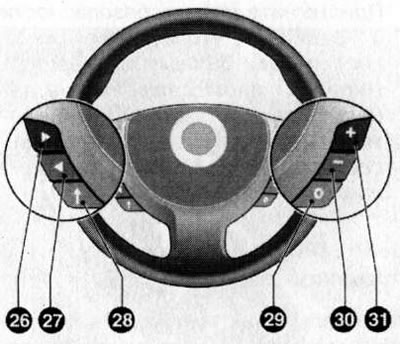
19.2. Placement of the audio system remote control buttons
Below is a description of the functions performed by each of the remote control buttons:
Button (26)
When the system is equipped with the TIG information display, this button allows you to tune to a radio station broadcasting on a higher frequency in the radio playback mode, and to switch to the next recording in the CD playback mode.
When the system is equipped with a GID display, button (26) is used to move the cursor left or up.
Button (27)
When the system is equipped with the TIG information display, this button allows you to tune into a radio station broadcasting on a lower frequency in the radio playback mode, and to switch to the previous recording in the CD playback mode.
When the system is equipped with a GID display, button (26) is used to move the cursor to the right or down.
Button (28)
When this button is pressed while operating a system equipped with a three-function display (TID), in the radio playback mode, the system switches to the next preset radio station, and in the audio CD playback mode, the disc starts playing from the first music track.
Note: There is no MP3 disc playback control function.
When operating the on-board computer on systems with a GID display, pressing the button enters the computer menu and confirms the selection of the menu item.
Note: On models equipped with an on-board computer and a graphic information display, when the radio or CD player is operating, buttons (26), (27) and (28) do not perform any functions.
Button (22)
This button selects the audio system playback mode - each time you press it, the system will switch from radio playback mode to CD player mode and back.
Buttons (30) "-" and (31) "+"
Pressing the corresponding button will increase or decrease the playback volume.
Visitor comments