


Contents: Three-function information display…⬇ Graphical Information Display (GID) ⬇ Selecting on-board computer…⬇ Resetting the on-board computer data…⬇
The information display is built into the central part of the instrument panel (see illustration 15.1) and is equipped with a sun-protective visor.
Depending on the year of the model and the additional equipment installed on the vehicle, a display of various designs and modifications may be installed. This section examines the modifications of the information display installed at the time of preparation of the materials for this Manual:
- Three-function information display (TID);
- Graphic Information Display (GID).
If you need information on the operation of an earlier display, please contact your Opel representative. Detailed information can also be found in the operating instructions supplied with the specific model.
Three-function information display (TID)
When the ignition is on, the display screen shows the time of day and outside air temperature in the top line, and the current date in the bottom line. When the audio system is turned on, its operating parameters are displayed in the bottom line instead of the date (see illustration 17.50).
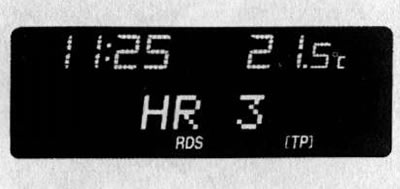
17.50. Three-function display indication (in radio listening mode)
The brightness of the screen is adjusted using the same potentiometer that adjusts the intensity of the instrument lighting (see above). When the ignition is off, the current information (time, date, outside temperature) can be displayed on the display screen for 15 seconds by briefly pressing one of the two control buttons located to the right of the display.
Display indication on the display "—.-"°C, "F" or "Safe" warns of a system malfunction - contact specialists at the earliest opportunity to fix the problem.
Outdoor temperature indication
The thermometer reacts to a decrease in air temperature immediately, and to an increase - with some delay. Be careful: when the thermometer shows several degrees above zero, there may already be black ice on the road!
To warn of the risk of icy roads when the outside temperature drops to around 3°C, a snowflake-shaped pictogram appears in the temperature display field on the display screen (see ill. 17.51). When the temperature rises, the pictogram
 goes out only at 5°C.
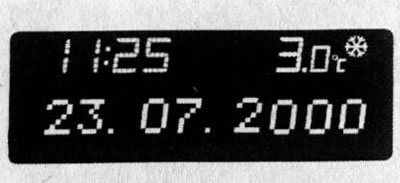
17.51. Three-function display indication in outside air temperature drop warning mode (the radio is turned off)
Setting date and time
Manual installation
Turn off the audio system.
The installation is carried out using two buttons © and ©, located to the right under the display (see illustration 17.52):
- a) Hold down the © button for about 2 seconds - the day display should start flashing;
- b) Use the © button to set the day;
- c) Using the © button, proceed to setting the month display;
- d) Use the © button to adjust the reading;
- e) © proceed to setting the year display;
- f) © correct the reading;
- g) © proceed to setting the clock display;
- h) © correct the reading;
- i) © proceed to setting the minutes display;
- j) adjust the reading;
- k) start the clock (with zeroing of the second countdown).
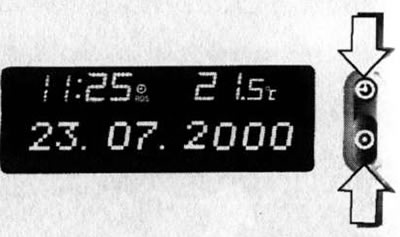
17.52. Three-function display control buttons
Automatic installation
On models with the appropriate configuration, the current time and date can be set automatically when receiving the corresponding signal from a radio station that supports the Radio Data System (RDS) format. Activation of the automatic time synchronization function is confirmed by the RDS icon appearing in the display field.
Some RDS radio stations transmit inaccurate time. If this causes the time to often and significantly differ from the actual time, you should disable automatic synchronization and set the time manually (see above).
Activation/deactivation of automatic time synchronization is performed as follows:
- a) Hold down the © button for about 2 seconds - the chronometer should go into setting mode;
- b) Press the © button twice - the year display should start flashing;
- c) Keep the © button pressed for about 3 seconds until the fflrds icon flashes on the display screen and "RDS TIME" appears (the year display should continue to flash);
- d) Press the © button to turn the automatic time setting mode on or off:
- RDS TIME 0 - off.;
- RDS TIME 1 - on.;
- e) To exit the setup mode, press the © button three times.
Graphical Information Display (GID)
The graphic information display allows control of the functions and settings of some equipment. The appearance of the display screen when the ignition is turned on is shown in Illustration 17.53.
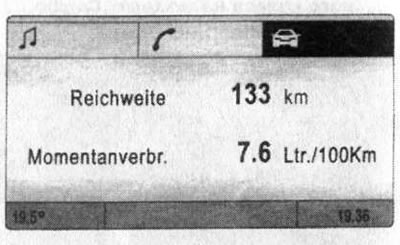
17.53. Screen view of the graphic multifunctional display (on-board computer indication mode)
The upper part of the display field contains symbolic images of the indication modes. Depending on the configuration, the following modes may be available:
- audio system

- navigation

- telephone

- on-board computer

The field with the symbol of the current display mode is highlighted in a brighter color (see illustration 17.53).
At the bottom of the display field, the outside air temperature is shown in the left corner and the chronometer (clock) readings are shown in the right corner.
The central part of the display field displays the current parameters of the corresponding mode. When changing the mode, the main menu indication of the newly selected mode appears in the field.
The display indication in the audio system operating modes is discussed in more detail in Section 19. Information on the capabilities of the navigation system and radiotelephone, as well as the methods of controlling them, is provided in a separate operating manual for the corresponding device.
The brightness of the screen is adjusted using the same potentiometer that adjusts the intensity of the instrument backlight (see above).
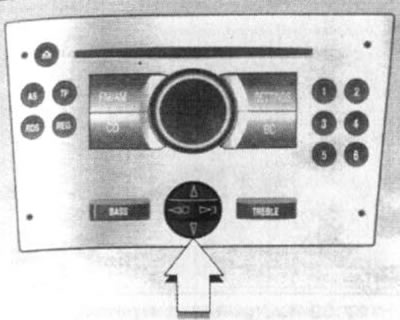
17.54. Central 4-position switch for infotainment system
The display is controlled using buttons and a 4-position switch (see illustration 17.54) or rotary handle (see illustration 17.55) infotainment system and, if equipped, via the infotainment system remote control buttons on the steering wheel (see illustration 17.56).
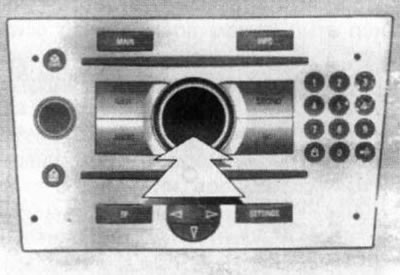
17.55. Infotainment system rotary knob |
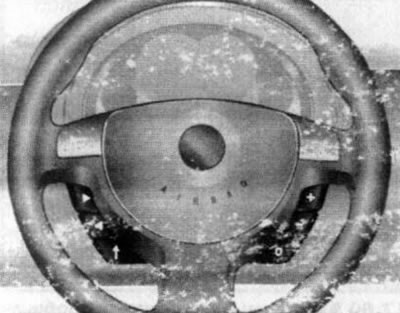
17.56. Remote control buttons (with appropriate equipment) infotainment system built into the steering wheel |
When using the rotary knob, parameters/options are selected by turning it counterclockwise, and the selected element/command is selected by pressing its central part. To exit the menu, select Return or Main and confirm the selection.
The purpose of the remote control buttons is described in Section 19.
Display indication on the display "—.-"°C, "F" or "Safe" warns of a system malfunction - contact specialists at the earliest opportunity to fix the problem.
Outdoor temperature indication
The thermometer reacts to a decrease in air temperature immediately, and to an increase - with some delay. Be careful: when the thermometer shows several degrees above zero, there may already be black ice on the road.
To warn of the risk of icy roads when the outside temperature drops to around 3°C, a warning message is displayed on the display screen (see illustration 17.57). If the outside temperature is below -5°C, the message is not displayed.
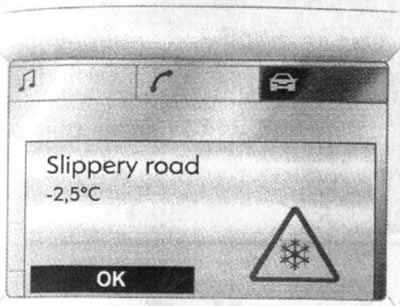
17.57. Message about the danger of icy roads
Setting up display functions
To enter the display function settings menu, press the Settings or Main button (depending on the configuration) on the infotainment system control panel (see section 19) - the Settings menu will appear on the screen (see illustration 17.58).
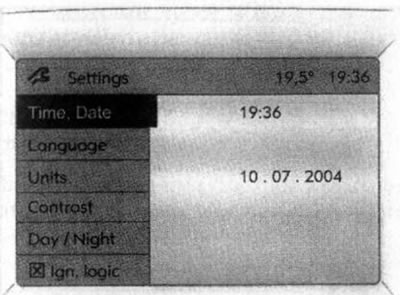
17.58. Main menu for setting up display functions
On the left side of the menu there is a list of available functions. When you select any of the functions (the field with the name of the selected function is highlighted in a brighter color) the right side of the menu displays the current parameters of this function.
To change the parameters, you need to enter the submenu of the selected function by pressing the rotary knob/4-position switch button, or the corresponding remote control button - a field for setting the corresponding function will open.
Setting the time and date
Select Time, Date in the Settings menu - the corresponding submenu will be displayed (see illustration 17.59). Select the parameter that requires adjustment and set the desired values.
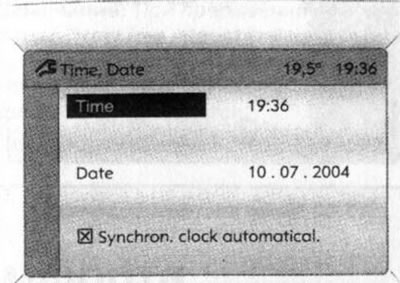
17.59. Current time and date settings menu
On models equipped with an infotainment system capable of receiving a signal from a Global Positioning System (GPS) satellite, the current time and date can be set automatically. If the displayed time does not correspond to the local time, the appropriate correction can be made manually or will be made automatically when the radio receives a Radio Data System (RDS) signal.
To synchronize the current time using the RDS system, select the item in the Time, Date menu "Synchron. clock automatical." - activation of this function is confirmed by the appearance of a diagonal cross in the square field before the menu item. In normal indication mode, the RDS icon will be displayed in the display field.
Some RDS radio stations transmit inaccurate time. If this causes the chronometer to frequently display inaccurate time, you should turn off automatic synchronization and set the time manually.
Select language
Using this menu item you can set the language of text messages for some functions.
To select a language, you need to go to the Language menu - a list of available languages will appear. Select the desired language (the selected value is marked with the symbol
 before the menu item) (see illustration 17.60). Note: On systems with a voice message function, after changing the text message language, you will be asked whether you also want to change the voice message language.
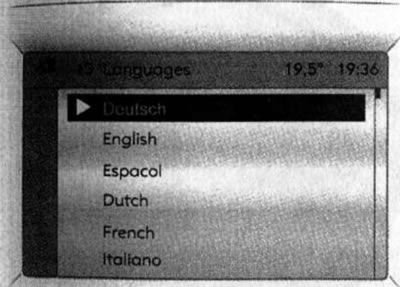
17.60. Selecting the language of text messages
Selection of systems of units of measurement
To select the most familiar system of units of measurement for the user, select the Units item in the Settings menu - a list of available systems of units of measurement is displayed, then select the desired system (the selected value is marked with an icon in front of the menu item) (see illustration 17.61).
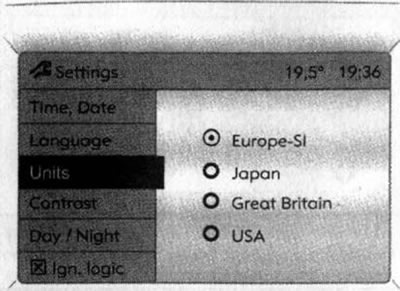
17.61. Selecting a system of units of measurement
Contrast adjustment (graphic information display)
To set the most optimal image contrast value, select Contrast in the Settings menu - a contrast adjustment scale will appear in the display field (see illustration 17.62). Make the necessary adjustments and confirm the new parameter setting.
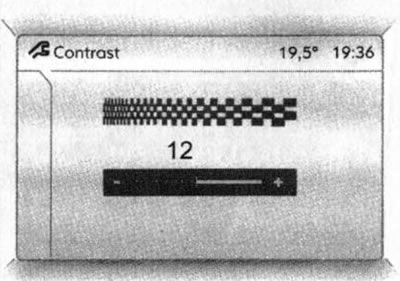
17.62. Adjusting image contrast (graphic information display)
Setting the display mode (with appropriate equipment)
For ease of use of the display (depending on the lighting) you can adjust the color of the image by selecting Day/Night in the Settings menu - the possible options will be displayed:
- Automatic - automatic adjustment depending on the lighting conditions in the car.
- Always day design - black/colored text on a light background.
- Always night design - white/colored text on dark background.
The selected value is marked with a bold dot symbol in front of the menu item.
Ignition logic (with appropriate equipment)
This menu allows you to activate/deactivate the function of automatic activation/deactivation of the infotainment system when the ignition is turned on/off (see section 19).
Selecting on-board computer functions (with appropriate equipment)
The on-board computer receives electrical signals from various sensors that monitor the operating parameters of various systems. All signals are continuously collected and analyzed electronically, after which the main resulting operating indicators are displayed on the information display.
When installed in a vehicle with an infotainment system with a graphical information display, the on-board computer allows the key performance indicators of two trips to be monitored independently of each other.
To enter the on-board computer functions menu, press the BC button on the infotainment system control panel, or select the field with the on-board computer system icon at the top of the display
 and confirm the selection of this mode - the display will show the basic page of the on-board computer menu (see illustration 17.53). The home page displays information about the range and instantaneous fuel consumption.
To display other operating indicators, press the BC button again or the left roller control on the steering wheel - the on-board computer system menu will appear in the display field (see illustration 17.63). The list of available monitoring modes is located on the left side of the menu. When you select the first (BC1) or second (BC2) trip monitoring modes, the indicators of the corresponding trip will appear in the right field in the following sequence:
- mileage;
- average speed;
- absolute fuel consumption;
- average fuel consumption.
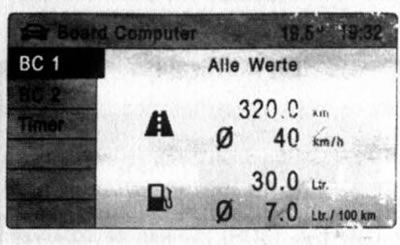
17.63. On-board computer system menu
Power reserve
The range is calculated based on the current fuel remaining in the tank and the instantaneous fuel consumption - the average value is displayed on the display. Some time after refueling the car, the range readings are automatically updated. When the fuel in the tank is less than 50 km, the warning message "Range" appears on the display (see illustration 17.64) - confirm receipt of the message as described above.
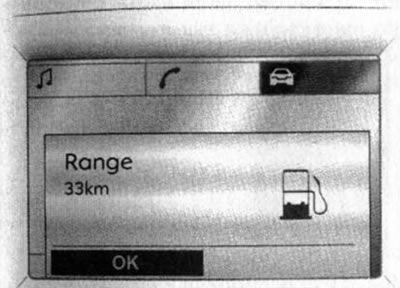
17.64. Warning message about remaining power reserve
Instantaneous fuel consumption
The units of measurement change depending on the speed - at speeds below 13 km/h the calculation is made in l/h, at speeds above 13 km/h - in l/100 km.
Mileage
Shows the mileage traveled since the last reset. The countdown can be restarted at any time by the operator (see below).
Average speed
The average speed is calculated from the moment the readings were last reset, for example, before the start of each trip. Note: Stops along the way with the ignition off are not taken into account.
Absolute fuel consumption
The display screen shows the amount of fuel consumed since the last reset (see below).
Average fuel consumption
The calculation of average fuel consumption is made from the moment of the last reset of readings (see below).
Stopwatch
To control the stopwatch, select the Timer item in the Board Computer menu - the corresponding indication will be displayed on the screen (see illustration 17.65). To start the stopwatch, select the Start menu item; to reset it, select the Reset menu item.
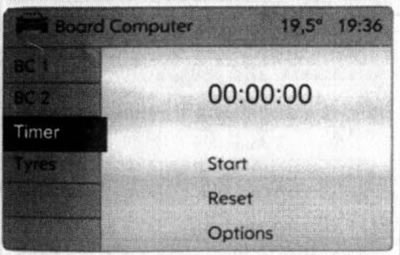
17.65. Stopwatch menu
If the stopwatch is configured accordingly, there may be an Options item in the menu. Using the settings available in this menu item, you can set the parameters for timekeeping:
- Driving Time excl. Stops — The time the car is in motion is measured, the time of stops is not taken into account.
- Driving Time incl. Stops — Measures the time the vehicle is in motion, and also takes into account the time it is stopped with the key in the ignition.
- Travel Time — The time between the start and stop of the timer is measured manually using the menu items Start and Reset, respectively.
Resetting the on-board computer data (reinstallation)
The following trip computer data can be reset (measurements or calculations will start over):
- average fuel consumption;
- absolute fuel consumption;
- average speed;
- mileage.
To reset the readings of the required parameter, you must enter the submenu of the selected on-board computer mode (BC1 or BC2) and select the indicator that requires zeroing (see illustration 17.66).
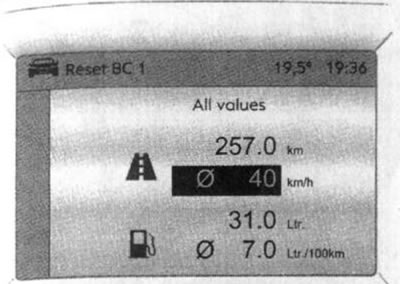
17.66. Resetting the on-board computer indicators
To reset all data for the selected mode, select the AH values menu item.
After resetting, the on-board computer display will show the string "—" instead of the selected readings. After some time, the newly determined value will appear.
Note: If the power supply is interrupted or the battery voltage is insufficient, the values recorded in the trip computer memory are erased.
Visitor comments