


In addition, the quality of radio signal reception depends on the power of the transmitting station and the distance from the signal source, and on the presence of shielding buildings and structures (houses, bridges, etc.), as well as from the influence of local conditions (mountains, lowlands, etc.).
Note: Using a cellular phone in or near a vehicle may cause interference with the radio.
Activating the radio receiver
When activated, the infotainment system will activate in radio playback mode if it was set before the system was turned off.
To activate the radio receiver from CD playback mode, press the "FM/AM" button (7). Subsequent presses of the button switch the receiver frequency ranges in the following order:
FM (VHF) → AM (medium and short waves)
When you activate the radio or switch between frequency ranges, the radio station frequency that was tuned the last time you used the radio is selected.
Setting up the radio
Tuning the radio receiver can be done in the following ways:
- Automatic search for radio stations;
- Manual search for radio stations;
- Search radio stations by program type (rDS radio data system).
Automatic setup
Automatic frequency tuning is performed by pressing the 4-position switch (14) with a short delay - this activates the automatic search for the nearest frequency with the received signal and the display shows the inscription "Seek" before the working frequency of the received station. Depending on pressing the right or left sector of the switch, the search is performed in the direction of increasing or decreasing frequencies.
Note: When using automatic search, the RDS and TP functions must be disabled (see below).
During the search, the playback sound is muted. After the automatic tuning is completed, the radio receiver will start playing the signal of the newly tuned radio station.
If the radio receiver does not find any radio stations, it automatically switches to a search mode with higher sensitivity. In case of unsuccessful search and after this attempt, the signal of the radio station selected before the search will be played.
Manual setting
If necessary, the frequency of the desired radio station can be tuned manually.
Attention: Frequency adjustment should not be performed while the vehicle is moving!
When you briefly press the 4-position switch button (14), the frequency change will occur step by step: when you press the right sector, the frequency will increase; when you press the left sector, the frequency will decrease. This function is used for fine-tuning the frequency.
If you know the frequency of the desired radio station, hold the corresponding sector of the switch (14) pressed until this frequency is reached - the display shows "MAN" before the current frequency of the radio station. During the search, the playback sound is muted and is activated again when the button is released.
Radio Data System RDS (FM)
Radio Data System (RDS) is a broadcast service that allows FM stations to transmit additional digital information along with their regular radio program signal.
Radio receivers equipped with decoders of radio data systems and gateway interface (RDS/EON), when tuned to the broadcast frequencies of a number of FM radio stations, are capable of reading special service information, which allows the use of some additional functions, such as determining the name of the radio station, automatic switching to alternative broadcast frequencies of the selected radio station, determining and transmitting traffic information service messages, searching for programs of a given theme, etc.
To activate the RDS function, briefly press the button (1) - the corresponding indicator should appear in the display field. If the currently tuned radio station does not support the RDS format, the radio receiver automatically searches for the nearest signal of the corresponding radio station.
The display field will show the name of the radio station broadcasting instead of the current frequency.
Note: When the automatic memorization function of radio stations is turned on (see below), the RDS function is activated automatically.
To deactivate the RDS function, press the button (1) again - the corresponding indicator on the display should go out, and the current tuning frequency will appear instead of the radio station name.
Selecting RDS radio stations
The infotainment system stores all received FM radio stations in the backup memory. The list of these radio stations is automatically initiated when the TP radio station search or the automatic station memorization function (see below) is activated. In this case, RDS radio stations are sorted in the channel list by station name (for example, HR1, HR2, etc.).
This list is initiated manually by holding down the "RDS" button (1) until a beep is heard - the display will show "Memory FM", then "MEM" and the operating frequency of the received radio station. To select RDS radio stations from the list, briefly press the left/right sector of the 4-position switch (14) - the radio will tune to the next RDS radio station recorded in the list.
To search for RDS radio stations without using the list, you must have the RDS function activated (the corresponding indicator appears on the display) hold the left/right sector of the 4-position switch until "Seek" appears on the display - the search for the nearest radio station transmitting RDS signals is performed, during the search the playback sound is muted.
Note: If the Traffic Announcement (TP) function has been previously activated (see below), the radio will only search for stations that support this format.
Selecting programs by message type (PTY)
Many RDS radio stations broadcast a PTY code indicating the type of program being broadcast (e.g. NEWS). Using the PTY code, you can search for radio stations by the type of program being broadcast.
This function is activated by selecting the corresponding parameter (PTY) in the settings menu (see above).
After each press on the upper/lower sector of the 4-position switch (14), the next name of the program type will appear in the display field (see explanatory table). After selecting the desired program type, you must press the right sector of the 4-position switch and hold it down until the display shows "PTY" - the playback sound is turned off and the search for a radio station broadcasting a program of the specified type is activated. If the radio receiver does not find the appropriate radio station, you will hear the last tuned radio station.
Classification of PTY program types:
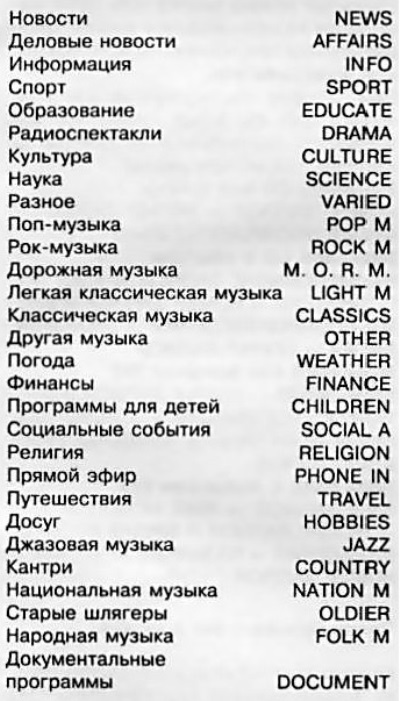
Regional Programs (REG) Search Function
The REG function is activated/deactivated by pressing the button (5) on the control panel of the infotainment system. When this function is activated, the corresponding indicator appears in the display field - when searching and selecting RDS radio stations, the regional broadcasting code will be additionally checked.
Road communications (TR)
Traffic announcements can be received in the FM range, as well as when playing cassettes or CDs, regardless of whether the RDS function is activated. The volume level for traffic announcements can be adjusted in advance by selecting the TA VOLUME parameter in the setup menu (see above).
The traffic announcements function is activated by pressing the "TP" button (4) - if the currently tuned radio station does not transmit traffic announcements, the search for the radio station with the strongest signal transmitting traffic announcements is automatically activated. When the function is activated, the indicator "[TP]" appears in the display field - if messages are being broadcast, or "[]" - if none of the currently received radio stations is transmitting traffic announcements.
When an information message is received, the audio system will automatically stop playing the current mode and switch to the traffic information service channel frequency - the corresponding indication will appear on the display. The transmitted information is broadcast at the volume level previously set for traffic messages. After the broadcast is finished, the audio system will return to the previously set settings.
Playback of an information message can be interrupted before the end of its broadcast by pressing the "TP" button - the audio system will return to the previously set settings, and the TP function will switch to the standby mode for the next message.
The function is deactivated by pressing the button (4) again.
Searching for traffic information stations can be done by pressing the right/left sector of the 4-way switch in the same way as when selecting RDS stations (see above), but with the TP function activated.
This audio system has the ability to listen to traffic announcements without playing other broadcast sources or CD recordings. To do this, turn off the sound by blocking (see above) - the display will show "Mute" or by turning the volume control knob (8) to the extreme left position. In this case, the audio system will play only the received traffic announcement signals at the volume level previously set for this function (see above).
If an external audio source is connected to the audio system (for example, a mobile phone), then when this device is operating, playback of other audio sources (including the broadcast of traffic messages) is not available - the display screen will show "Extern In". However, if necessary, you can interrupt the playback of sound from an external source and switch to receiving a traffic message. When the TP function is activated, when receiving a message, instead of the inscription on the screen "Extern In." the name of the radio station broadcasting the traffic announcement will appear. To switch to the message playback mode and back, press the "TP" button (4).
Entering presets into memory
The radio receiver's memory can store up to 12 FM radio station settings (6 in FM and in FM-AS level) and up to 12 AM radio station settings (6 in AM and AM-AS level).
To activate the FM-AS or AM-AS level, press the "AS" button (2) on the system control panel after preliminary selection of the FM or AM range - the corresponding indicator should light up on the display. To go to the first level of the corresponding range, press the same button again - the indicator in the display field should go out. Entering frequencies into the system memory is performed in the following sequence:
- a) Perform manual tuning of the desired radio station (see above).
- b) Press one of the 6 preset radio station selection buttons (12) and hold it for about 3 seconds until a beep sounds - during this time the frequency previously entered into this memory cell is displayed on the display screen. After the confirmation signal, the radio receiver begins broadcasting the newly tuned radio station, and the name or operating frequency of this radio station appears on the display - the setting is entered into memory.
Note: When you press the button, the sound will be temporarily stopped and will resume after you release the button.
- c) Repeat the above operations with other buttons to tune to the radio stations you listen to most frequently.
Note: The frequency is stored in memory simultaneously with the RDS settings that were activated at the time of recording.
Manual frequency tuning and recording can also be performed when the AS level is activated.
The settings stored in the memory cells are activated by briefly pressing the number buttons 1-6 (12) after preliminary selection of the required level using the "AS" button (2).
In addition, if you hold the "AS" button (2) down until you hear a beep, the radio will switch to the AS level and automatically search for stations, with 6 of them being tuned (with the strongest signal) are stored in the receiver's memory cells (number buttons (12)).
Note: When performing this operation, the playback sound is muted. Recording is performed only for the AS level.
When automatic recording of radio stations into memory is turned on, the RDS function is automatically activated and all radio stations that support the RDS format are first remembered.
If the function for receiving traffic announcements TP (see above) is activated before or during automatic memorization of radio stations, the radio receiver will call the radio station transmitting traffic announcements after the automatic search has finished.
Note: If the TP function is activated during automatic recording, the automatic channel search operation remains activated until at least 1 radio station broadcasting traffic information is found.
If during the trip the vehicle leaves the coverage area of the transmitting radio stations whose frequencies are stored in the system memory, it is necessary to reconfigure the memory cells to new radio stations.
Visitor comments